 Albania
 Argentina
 Australia
 Austria
 Belgium
 Bosnia and Herzegovina
 Brazil
 Bulgaria
 Canada
 Chile
Chile
 Colombia
 Croatia
 Czech Republic
 Denmark
 Estonia
 Finland
 France
 Germany
 Greece
 Hungary
 Ireland
 Italy
Italy
 Latvia
 Lithuania
 Luxembourg
 Mexico
 Moldova
 Montenegro
 Netherlands
 New Zealand
 North Macedonia
 Norway
 Philippines
 Poland
 Portugal
 Romania
 Serbia
 Slovakia
 Slovenia
 South Africa
 Spain
Spain
 Sweden
 Switzerland
 Turkey
 Ukraine
 United Kingdom
 United States of America



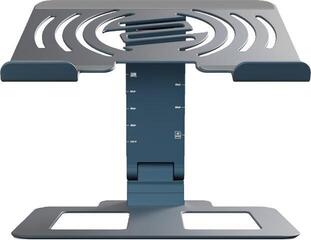
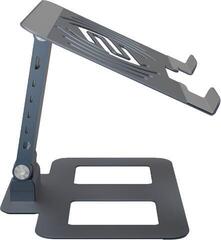
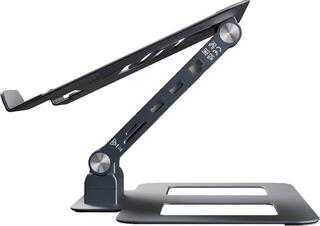
PC Holders and Stands
A computer stand or holder frees up desk space and lets you position the case where it will not obstruct your legs or cable routing. The computer remains accessible for switching on, cleaning and connecting devices. You can choose a floor, mobile or under-desk solution; case dimensions, load capacity and mounting method are the main criteria. A well-chosen position also protects the computer from accidental kicks or tipping without blocking its vents.
Measure the computer and available space first
Start with the width, height and depth of the computer case. Include protruding feet, side glass, handles and connectors, as the stated case dimensions may not cover everything. Then check the free space under or beside the desk. Leave room between the case and wall for cables and airflow; the exact clearance required depends on the computer design.
For an adjustable holder, check the arm range and how the arms lock. A loose fit lets the case move, while an overly tight fit may press against the side panel or glass. Compare the stand's load capacity with the weight of the fully equipped computer, not the empty case. The power supply, graphics card, drives and any liquid cooling all add weight.
| Design | When it makes sense | What to check |
|---|---|---|
| Under-desk holder | You want the floor clear and the computer to move with a height-adjustable desk | Desktop load capacity, mounting, adjustment range and legroom |
| Mobile stand | You need to move the computer for cleaning or servicing | Wheel spacing, brakes, stability and cable slack |
| Fixed floor stand | You want to lift the case off carpet or a dusty floor | Base width, non-slip elements and access to filters |
| Small PC holder | You are mounting a compact computer behind a monitor or under the desktop | Ventilation, button and port positions, and mounting-point compatibility |
Under the desk, on the floor or by the monitor
Under-desk mounting
A holder under the desktop is particularly useful with a height-adjustable desk. The computer moves with the top, so the cable length required between it and the monitor does not change. Before drilling, check the desktop material and thickness, the position of braces and the desk mechanism. Mounting screws must not break through the top, and the holder must not obstruct your knees.
Do not install a heavy case by guesswork. Follow the load limits of both the holder and desk, as well as the manufacturer's installation instructions. Chipboard or hollow-core tops may require a different solution from solid wood. If you are unsure about the mounting surface, a freestanding unit that does not modify the furniture may be safer.
Stand with castors
A mobile base makes rear ports easier to reach and simplifies cleaning. Castors are useful only if they do not swivel or roll during normal use; look for brakes on sloping or uneven floors. A wide case with heavy components needs a stable base. Watch the cables while moving it so the connectors do not take the full strain.
Do not overlook ventilation
The holder should support solid parts of the case without covering intake or exhaust vents. Check the direction of airflow and the positions of fans and removable dust filters. If a filter slides out underneath, leave enough space below the computer to remove it. Soft carpet can restrict a bottom air intake, so a firm raised base helps.
- Do not press a solid holder strap across a fan grille or side glass.
- Do not place the rear of the case tight against a wall; connectors and cables need room.
- After installation, check temperatures under the same load as before the move.
- Keep dust filters accessible so cleaning does not require dismantling the entire setup.
Cables and workstation ergonomics
Lifting the computer alone will not create an organised workspace. Route power, display, network and audio cables with enough slack for desk movement, but do not leave them loose around your feet. Do not fasten the bundle rigidly to a moving part without strain relief. Case connectors should not support the weight of hanging cables.
At a music or work desk, plan the monitor, keyboard, audio interface and other equipment first. Suitable studio furniture can help if you need separate shelves and space for equipment. Choose the PC holder to suit the setup, not the other way round. Front ports should remain within reach, while illuminated parts or fans need not sit close to where you record with a microphone.
Checks before installation
- Weigh the complete computer and measure it at its widest points.
- Mark the vents, filters, buttons and ports that must remain unobstructed.
- Check the mounting surface, supplied fasteners and tools required.
- Lay out the cables provisionally for both the highest and lowest desk positions.
- Once mounted, test stability gently without sudden loading, then connect the equipment.
For a computer you move or open often, prioritise easy access and free-moving cables. A permanent office or studio setup needs firm support and cable routing that does not complicate cleaning. A tidy space only helps if you can reach the filters, ports and side panel without dismantling the whole workstation.